Changelog
New features, improvements, and fixes.
Public Availability Page
Share your availability with clients and leads via a public profile page.
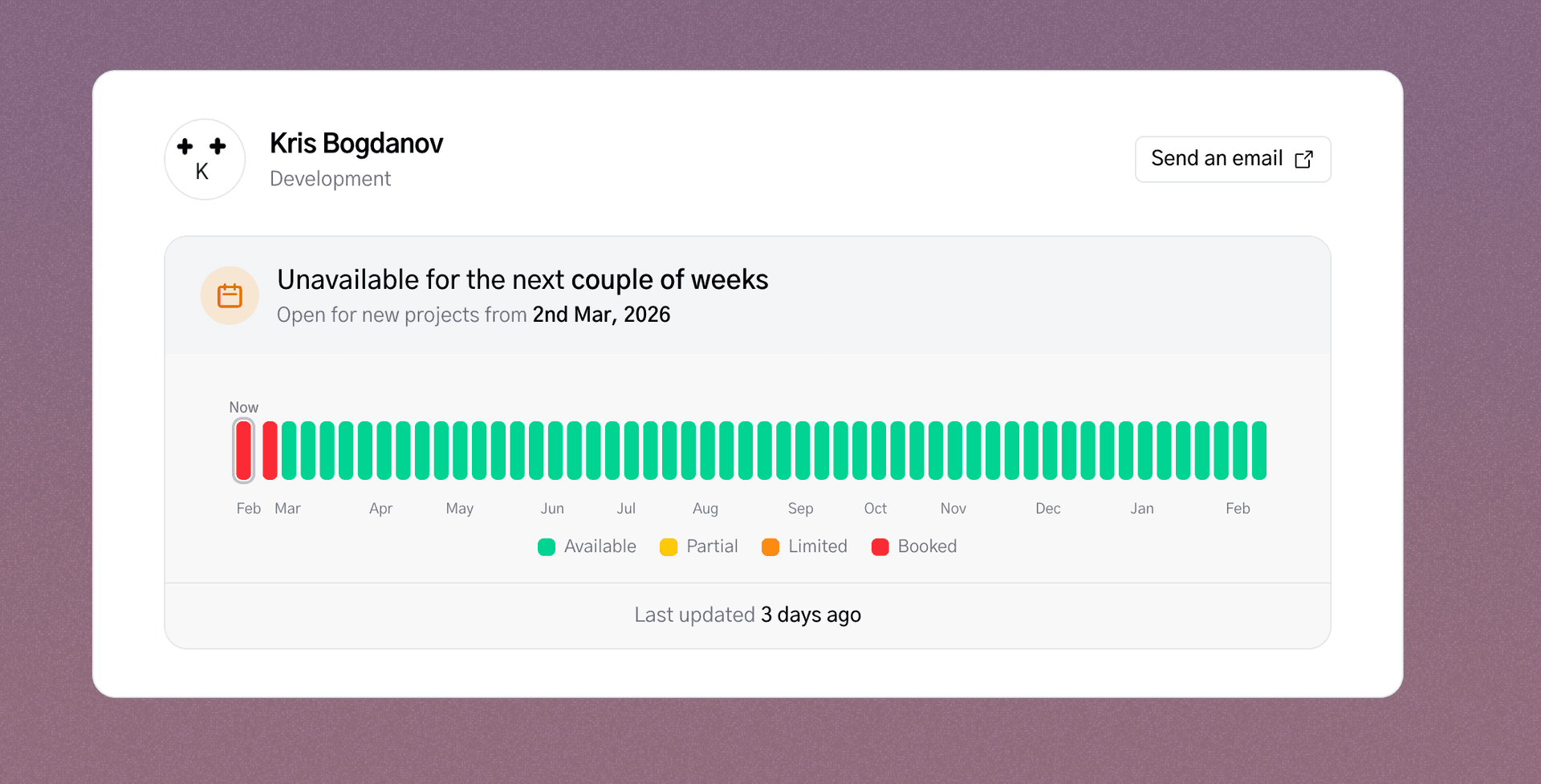
You can now share a public page that shows your real-time availability — no login required.
How it works
Your schedule data is used to calculate your availability week by week. The public page shows:
- Your profile — name, role, and a customisable call-to-action button (e.g. "Send an email")
- Availability status — a banner that tells visitors when you're next open for new projects
- Calendar heatmap — a 12-month strip showing available, partial, limited, and booked weeks at a glance
- Last updated — so visitors know the data is fresh
Customisation
From your dashboard settings you can:
- Set your username to get a clean URL (
wiggleroom.so/u/yourname) - Choose an accent colour for the page background
- Configure the CTA button text and link
- Control how many days ahead to show
The page updates automatically as your schedule changes — no manual publishing needed.
Timeline View
See all your projects and phases on a single Gantt-style timeline — drag to reschedule, right-click to edit, and scroll infinitely in any direction.
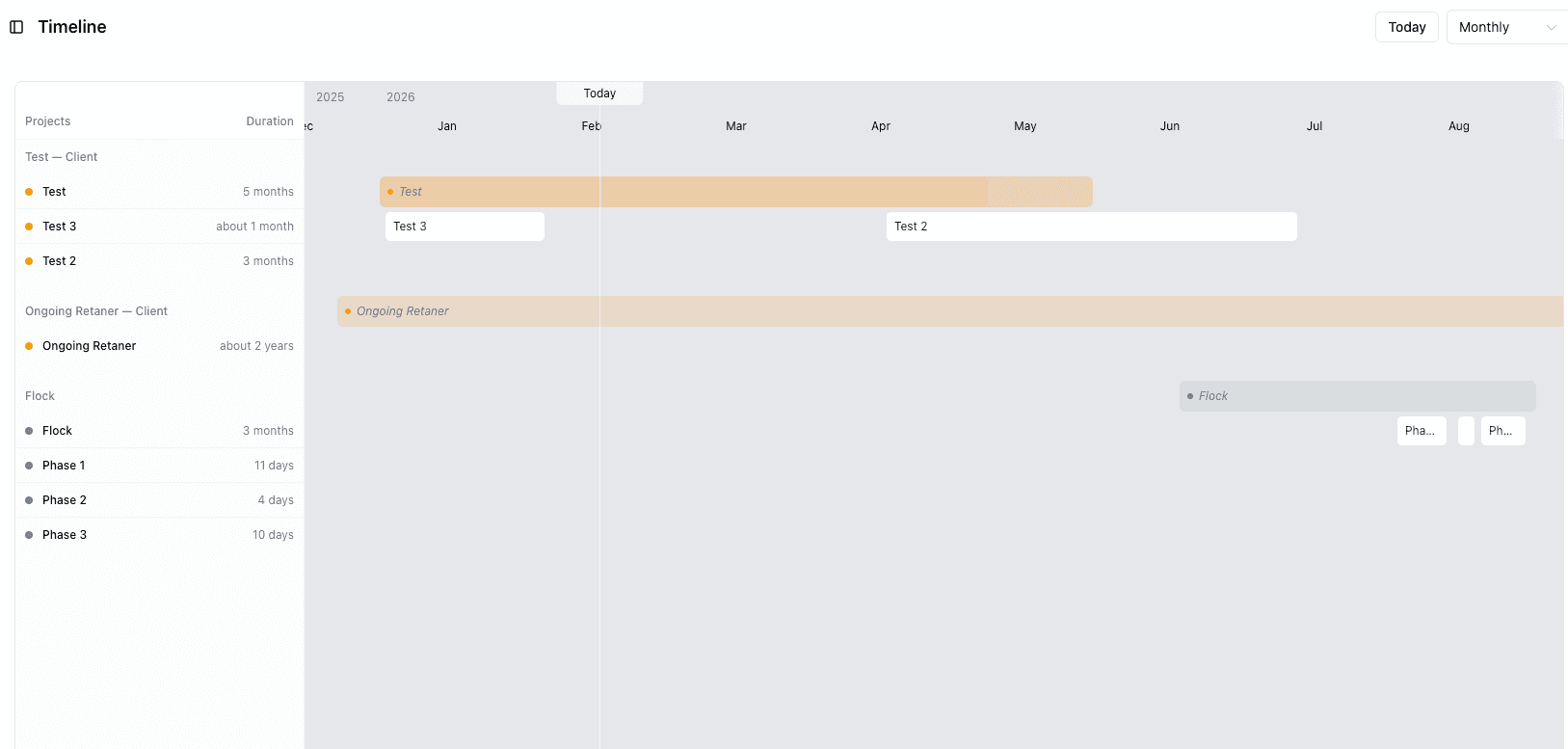
A new Timeline page lives under Schedule, giving you a bird's-eye view of every project and phase on one interactive Gantt chart.
What you can do
- See everything at once — all projects and their phases are laid out on a single horizontal timeline, grouped by project
- Drag to reschedule — drag any phase or project bar to move it, or grab the edges to resize
- Weekly, Monthly, and Quarterly views — switch between zoom levels with the dropdown in the top right
- Ongoing projects — retainers and projects without an end date extend continuously across the timeline with a fading edge
- Double-click to edit — double-click any bar to open the edit form for that project or phase
- Right-click to delete — right-click a phase bar for a context menu with edit and delete options
- Add phases from the timeline — click the + button on any row to create a new phase, pre-filled with the correct project
- Infinite scroll — scroll left or right and the timeline keeps loading new dates
- Jump to Today — hit the Today button to snap back to the current date
Find it in the sidebar under Schedule → Timeline, or search for "Timeline" in the command palette.
Schedule UX Improvements
A friendlier schedule sidebar, better overbooking indicators, and a welcome modal for new users.
A handful of polish updates to make the schedule easier to use.
What's changed
- Flat project sidebar — the sidebar now shows a flat, reorderable list of projects with client colour dots instead of collapsible client groups. Drag to reorder and the order is saved locally.
- Overbooked indicators — overbooked days now show a red bottom border and total hours in the header so you can spot conflicts at a glance
- Available slots — free time blocks are now tinted green instead of grey, making open capacity easier to see
- Today highlight — the current day column has a stronger tint and a left accent border
- Double-click to add — double-click a client without projects in the sidebar to open the new project form pre-filled with that client
- Welcome modal — first-time users see a quick-start guide when they land on an empty schedule
- Add Client shortcut — the empty sidebar state now includes an "Add Client" button so new users don't have to navigate away
Added unsaved changes modal
Unsaved changes protection on client and project forms.
Editing a client or project and closing the drawer without saving now shows a confirmation dialog — so you won't accidentally lose your work.
Finance Tab (Beta)
Track revenue across your clients and projects with a new Finances tab — forecast earnings, see actual vs estimated breakdowns, and set annual goals.
The new Finances tab gives you a clear picture of your revenue — past, present, and projected.
What's included
- Monthly revenue chart — stacked bars showing earned, scheduled, and estimated income broken down by client
- Annual goal tracking — set a revenue target and see your progress in a donut chart with earned vs remaining
- One-time and retainer support — one-off project fees, hourly rates, daily rates (multiplied by your retainer days per month), and more
- Actual vs forecast — completed work shows as earned revenue, upcoming work is categorised as scheduled or estimated
This is a beta release — we'd love your feedback as we refine the calculations and add more detail.
Command Palette
Navigate anywhere in Wiggle Room instantly with Cmd+K — search pages, clients, projects, and create new items without leaving the keyboard.
Press ⌘K (or Ctrl+K on Windows) to open the command palette from anywhere in the dashboard.
What you can do
- Jump to any page — Dashboard, Clients, Projects, Schedule, Settings, Changelog
- Search clients and projects — find them by name and go straight to their detail page
- Quick actions — create a new client or project without navigating away
The command palette is designed to keep you in flow. No clicking through menus — just type and go.
Launch Changelog
Introducing the Wiggle Room changelog — stay up to date with new features, improvements, and fixes.
We're excited to introduce the Wiggle Room changelog! From now on, you'll find all product updates here — new features, improvements, and bug fixes.
What's included
- Public changelog page at /changelog with a clean timeline layout
- Notification bell in the dashboard header with a red dot when there are new updates
- MDX-powered content so we can publish entries quickly
Stay tuned for more updates!